Onboarding the Non-Integrated Service
This procedure describes how to onboard a Webex Cloud Connect service with the Non-Integrated Integration option. Enables you to load numbers to Live Platform on behalf of the customer. However, when this option is configured:
| ■ | The customer must add numbers separately to their Webex Control Hub. |
| ■ | When adding site locations on Live Platform, data is not synced and instead you must configure the Location ID extracted from the customer Webex Control Hub. |
| ■ | Usage data Unused DIDs,User DIDs (assigned DIDs),Contact Center DIDs, Service Number DIDs and Service Numbers CAC is not synchronized from the customer Webex Control Hub. |
The onboarding process applies the Live PlatformEssential license to the lead request. In addition to applying this global Live Platform license, you also need to configure the number of calling sessions required for each call type. For example, the User-based phone number Calling type allows two user sessions (one concurrent call and one forwarded call transferred back through the SBC). In addition, you can optionally meter customer calling sessions using the Pay-as-you-go model so that the customer is billed based on actual consumed call sessions instead of the ordered session values.
| ➢ | To onboard the Webex Service: |
| 1. | Do one of the following: |
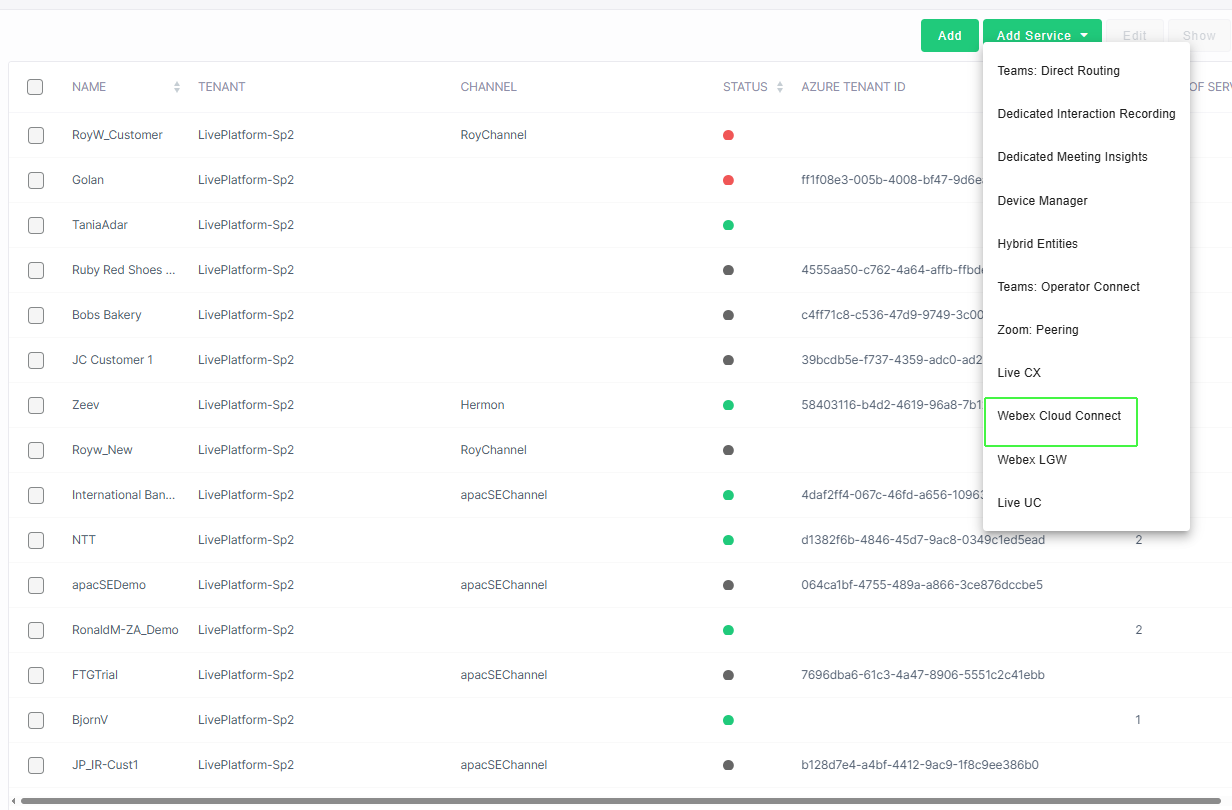
| ● | In the Customers page, select the check box adjacent to the relevant customer and then from the Add Service drop-down, choose Webex Cloud Connect. |
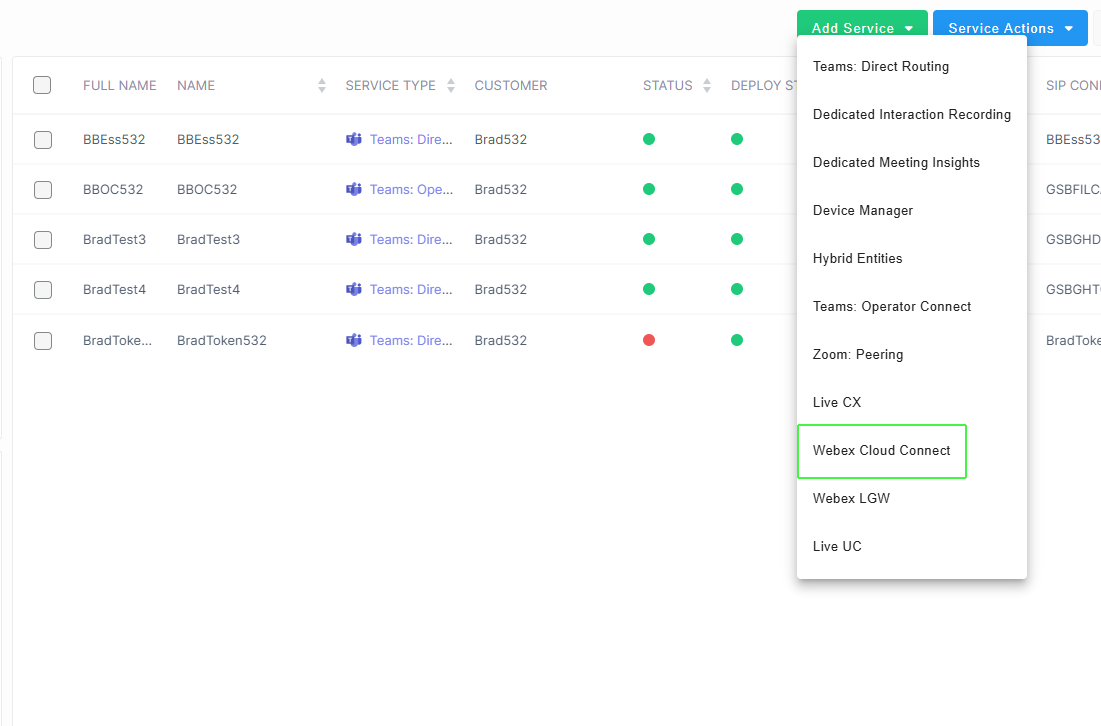
| ● | In the Services page, from the Add Service drop-down, choose Webex Cloud Connect. |
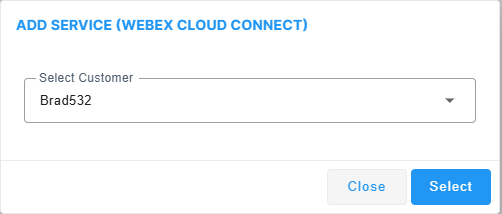
| a. | Select the relevant customer. |
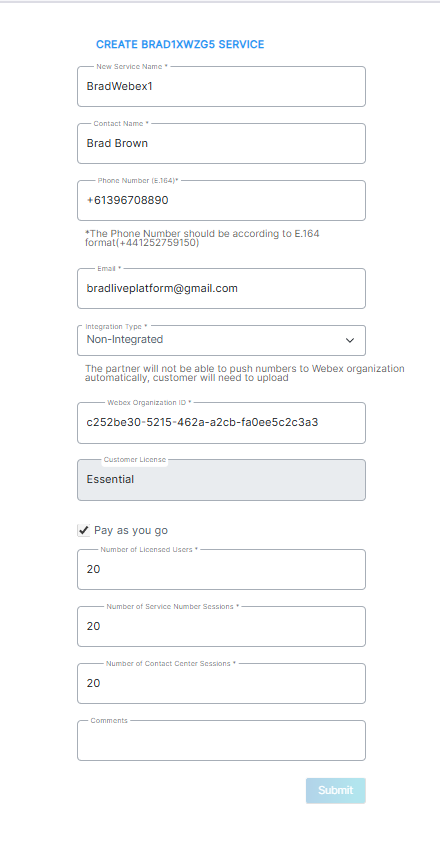
The Onboarding form is displayed.
| 2. | Configure parameters according to the table below and then click Submit. |
|
Parameter |
Description |
|||||||||||||||||||||
|---|---|---|---|---|---|---|---|---|---|---|---|---|---|---|---|---|---|---|---|---|---|---|
|
New Service Name |
The name of the new service. |
|||||||||||||||||||||
|
Service Short name |
The Short name of the new service. |
|||||||||||||||||||||
|
Contact Name |
The name of the contact person or tenant admin responsible for the deployment and management of the service. |
|||||||||||||||||||||
|
Phone Number (E.164) |
Phone number of the contact person according to E.164 format: A maximum of 15 digits, and with the following validation rules:
The number has the following structure: [+][country code][area code][subscriber number]. Example United States Telephone number: +12127881500
|
|||||||||||||||||||||
|
|
The email of the tenant admin managing the service. |
|||||||||||||||||||||
|
Integration Type |
SelectNon-integrated: Enables the Service Provider or Channel partner to load numbers to Live Platform. However, the customer must upload the numbers to their Webex Control Hub from the Live Platform service portal. |
|||||||||||||||||||||
|
Webex Organization ID |
The Organization ID registered for the customer on the Webex Cloud Connect platform. |
|||||||||||||||||||||
|
Customer License |
The license type for the service. Default: Essential |
|||||||||||||||||||||
|
Pay as you go |
Select the 'Pay as you go' option for pay-as-you-go model for billing according to the actual consumed sessions for the service instead of the ordered sessions (as configured for the "Number of Licensed Users", "Number of Service Number sessions" and "Number of Contact Center sessions" below). |
|||||||||||||||||||||
|
Number of Licensed Users |
Indicates the maximum number of licensed sessions for managing numbers of type "User": User-based phone number that allows the user two sessions (one concurrent call and one forwarded call transferred back through the SBC). |
|||||||||||||||||||||
|
Number of Service Number sessions |
Indicates the maximum number of licensed sessions for managing numbers of type "Service": Session-based unique main phone number that is limited to three or more sessions or concurrent calls (e.g., for groups of users sharing the same E.164 phone number call queues, shared calling, auto-attendants, IVRs, BOTS, hunt groups, etc.). |
|||||||||||||||||||||
|
Number of Contact Center sessions |
Indicates the maximum number of licensed sessions for managing numbers of type "Contact Center": Session-based main phone number for a contact center. The contact center number can be limited to three or more sessions or can be open-ended (sessions will be billed according to actual usage). |
|||||||||||||||||||||
|
Comments |
Free text notes. |
Once the service is successfully added, a message similar to the following is displayed.

| 3. | Click the All Customers tab to view the new service. |